Firefox
| Download | |
| about:config | |
| Make everything larger | |
| A proxy for localhost | |
| Move a profile to another computer | |
| See cookies | |
| Clear the data of one site | |
| Tabs | |
| Start Firefox from PowerShell |
Firefox is the browser of Mozilla. It is handy for testing because it keeps its own proxy settings apart from the system ones. Some of the screenshots are from an older version; the settings still exist.
Download
The current version is on mozilla.org.
about:config
Many settings have no place in the normal settings page. Type about:config in the address bar and press Enter:

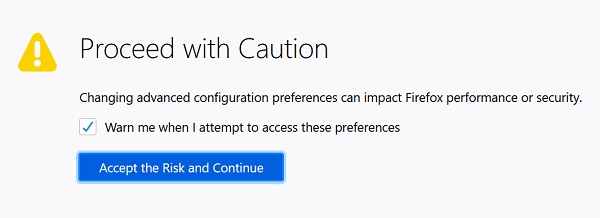
Firefox warns that changes here can break it. Click Accept the Risk and Continue:
Then type the name of a setting into the search field.
Make everything larger
Ctrl and + enlarge one page. To scale the whole browser, the tabs and menus too, find layout.css.devPixelsPerPx in about:config, click the edit icon on the right and set a value above 1:
layout.css.devPixelsPerPx 1.25
The default -1.0 follows the scaling of the operating system.
A proxy for localhost
To record a test in JMeter, the browser sends its traffic through the JMeter proxy, and Firefox can do that without touching the proxy of the system. Since version 67, though, Firefox never sends requests for localhost, 127.0.0.1 and ::1 through a proxy, and the connection settings say so:

To test a site on your own computer anyway, open about:config, find network.proxy.allow_hijacking_localhost and click the toggle icon on the right:
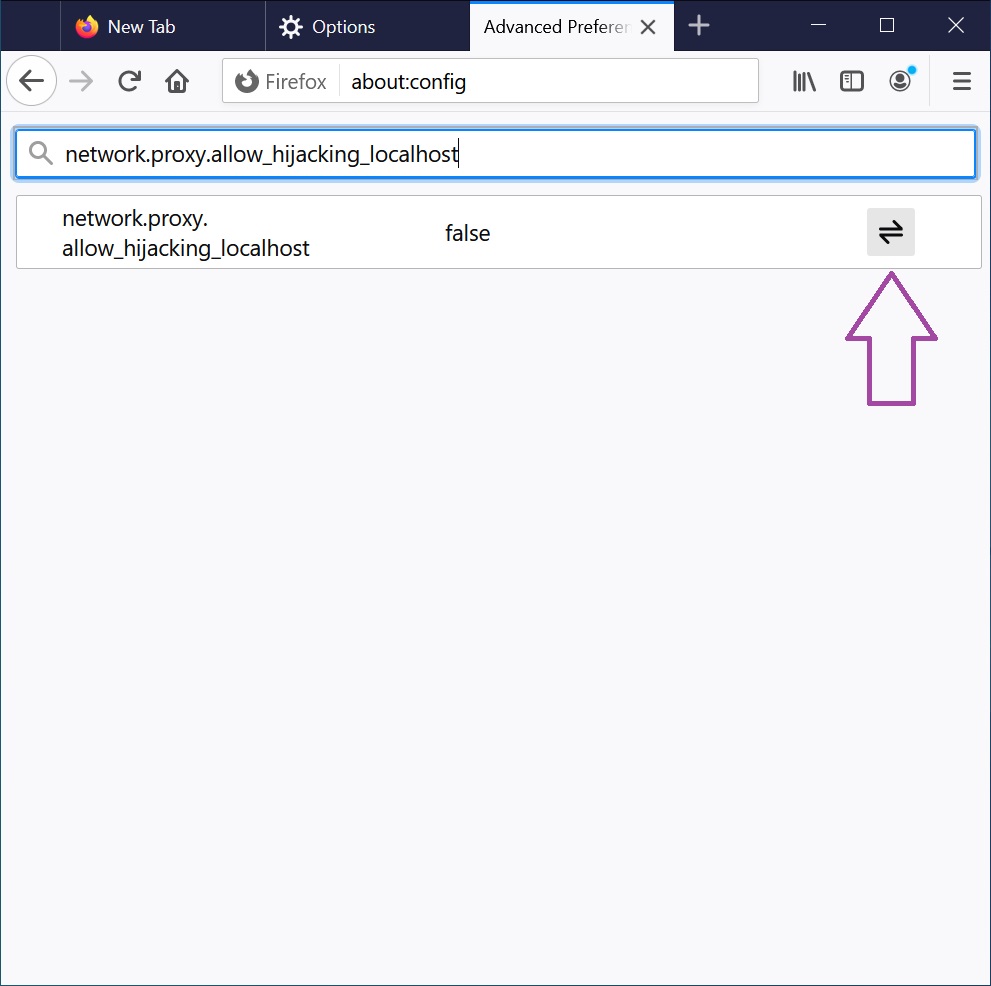
The value becomes true, and requests to localhost go through the proxy:
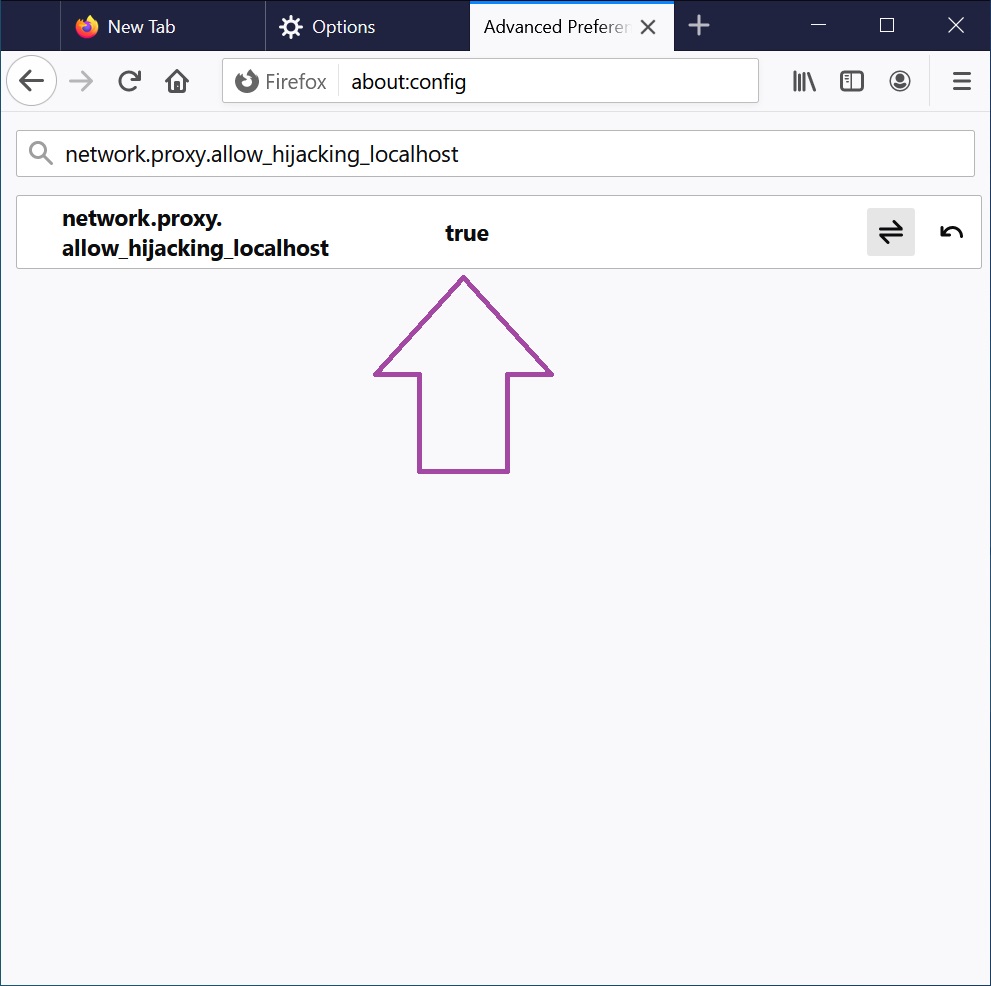
Set it back to false after the recording.
Move a profile to another computer
A profile holds the bookmarks, passwords, extensions and settings. about:profiles shows where each profile is on the disk. On Windows they are in
%AppData%\Mozilla\Firefox\Profiles
which for the user andrei is C:\Users\andrei\AppData\Roaming\Mozilla\Firefox\Profiles. Close Firefox, copy the folder of the profile to the same place on the new computer, then open the profile manager from Win+R:
firefox.exe -ProfileManager
Create a profile with a name you will recognise, click Choose Folder and pick the copied folder. Firefox starts with everything from the old computer.
See cookies
Open the developer tools with Ctrl+Shift+I (F12 works too), tab Storage, Cookies, and pick the site. How a site sets them: Cookies in PHP.
Clear the data of one site
Settings, Privacy & Security, Cookies and Site Data, Manage Data…; select the site, click Remove Selected and Save Changes. For the site you are on, the padlock in the address bar has Clear cookies and site data… as well.
Tabs
Ctrl+Tab goes to the next tab, Ctrl+Shift+Tab to the previous one, and Ctrl+Shift+T opens the tab you closed last.
Start Firefox from PowerShell
An alias lets you type firefox in PowerShell:
Set-Alias -Name firefox -Value "C:\Program Files\Mozilla Firefox\firefox.exe"
It lasts until the window is closed. To keep it, add the same line to the file whose path $PROFILE prints.
Article authors: Andrei Olegovich, Klavdiya Kondakova