Recording a JMeter test
| Introduction | |
| Preparing the plan | |
| Browser proxy setup | |
| Certificate import | |
| Recording | |
| Related articles |
Introduction
In this article you will learn how to record a test with JMeter GUI and the Firefox browser.
Only the bare minimum of elements is added, to keep the focus on recording itself. Later you will
need more elements and a slightly more complex recording setup.
Preparing the plan
An empty plan looks like this:

Let us add the most essential elements manually, one by one
Instead of adding elements manually you can use the Recording template
As usual, right-click the plan and choose
Add → Threads (Users) → Thread Groups
A Thread Group with a gear icon appears under the plan.
To record a test you need to add an HTTP(S) Test Script Recorder
Right-click the plan → Add → Non-Test Elements → HTTP(S) Test Script Recorder

The HTTP(S) Test Script Recorder settings look like this:
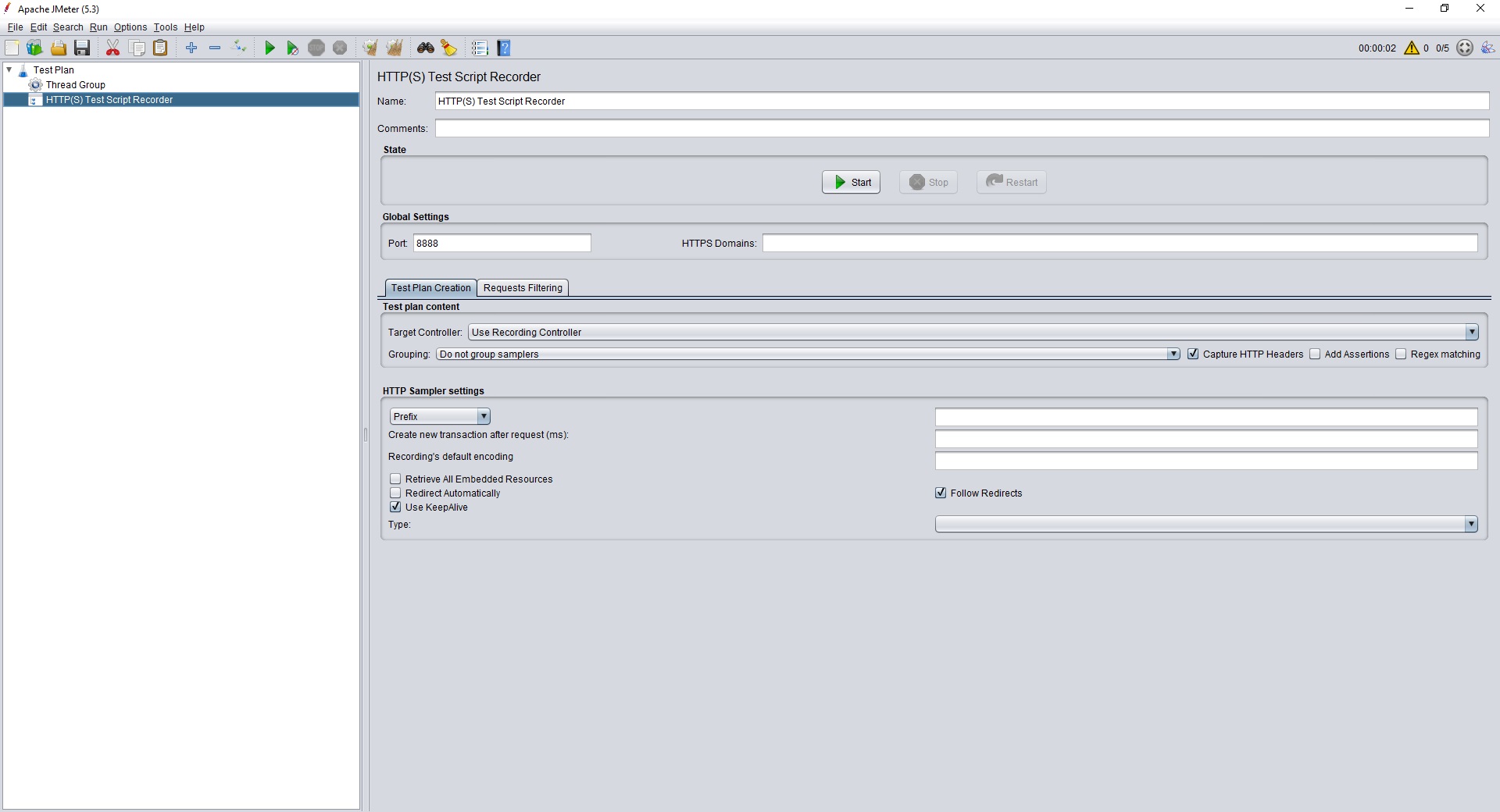
Note the Port. JMeter will listen for traffic on it. Let us change it to 8877 for clarity and remember the value.
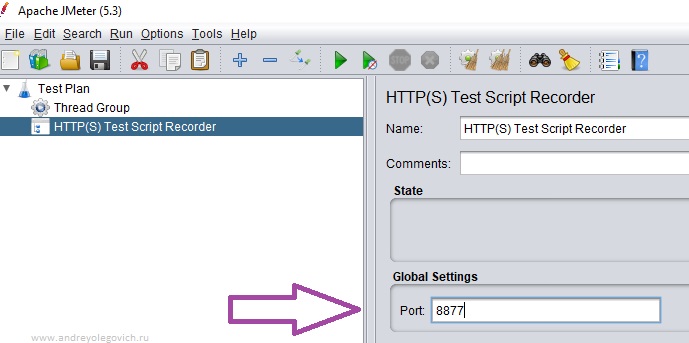
The preliminary plan setup is done. Next step - configure the browser to use port 8877 as a proxy.
Browser setup
Download and install
Firefox
- read
here
where to get it.
Other browsers do not allow a proxy just for themselves.
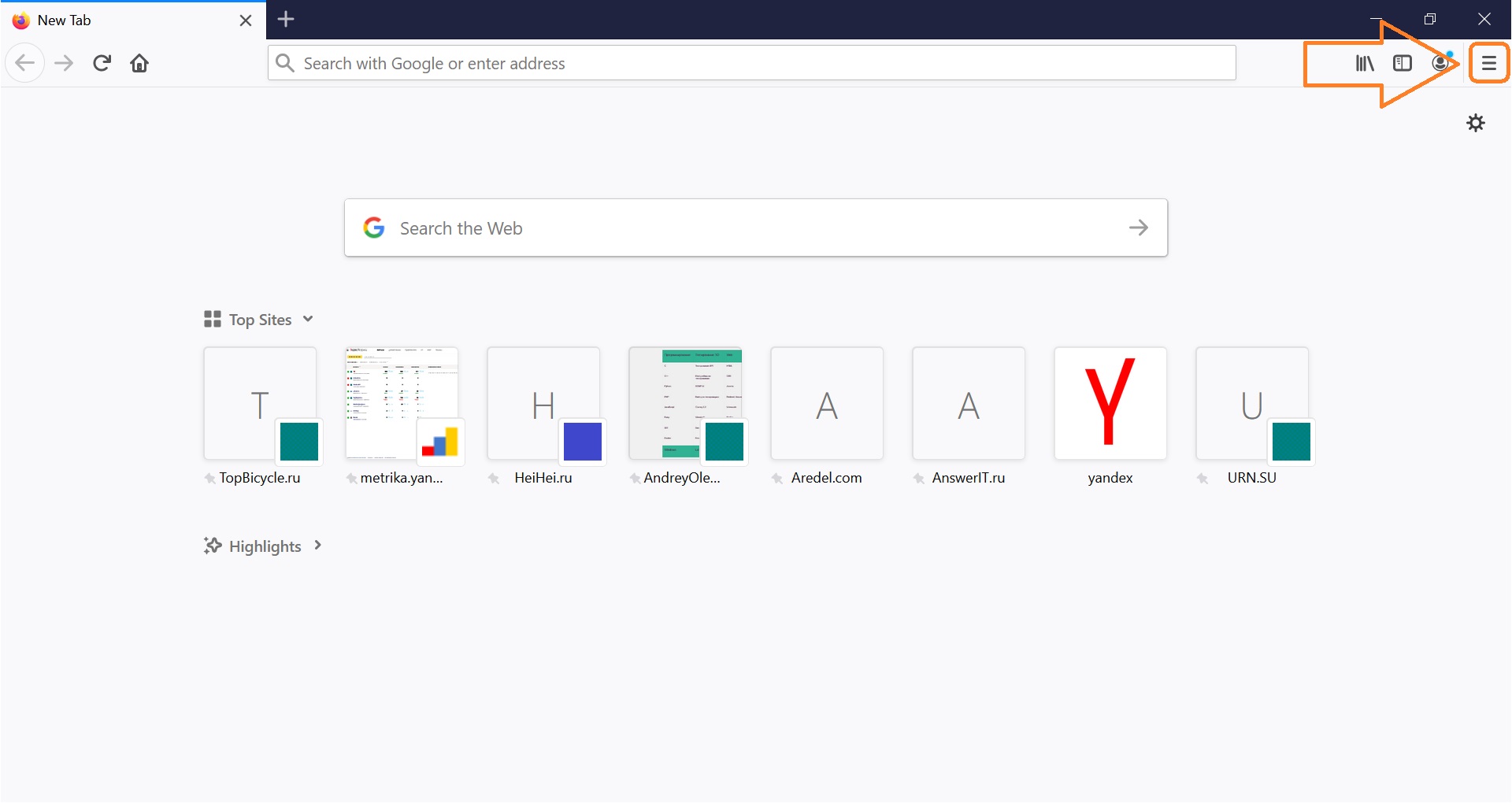
Open Firefox . In the top right corner click the menu icon and choose Options. Or just click the gear icon.
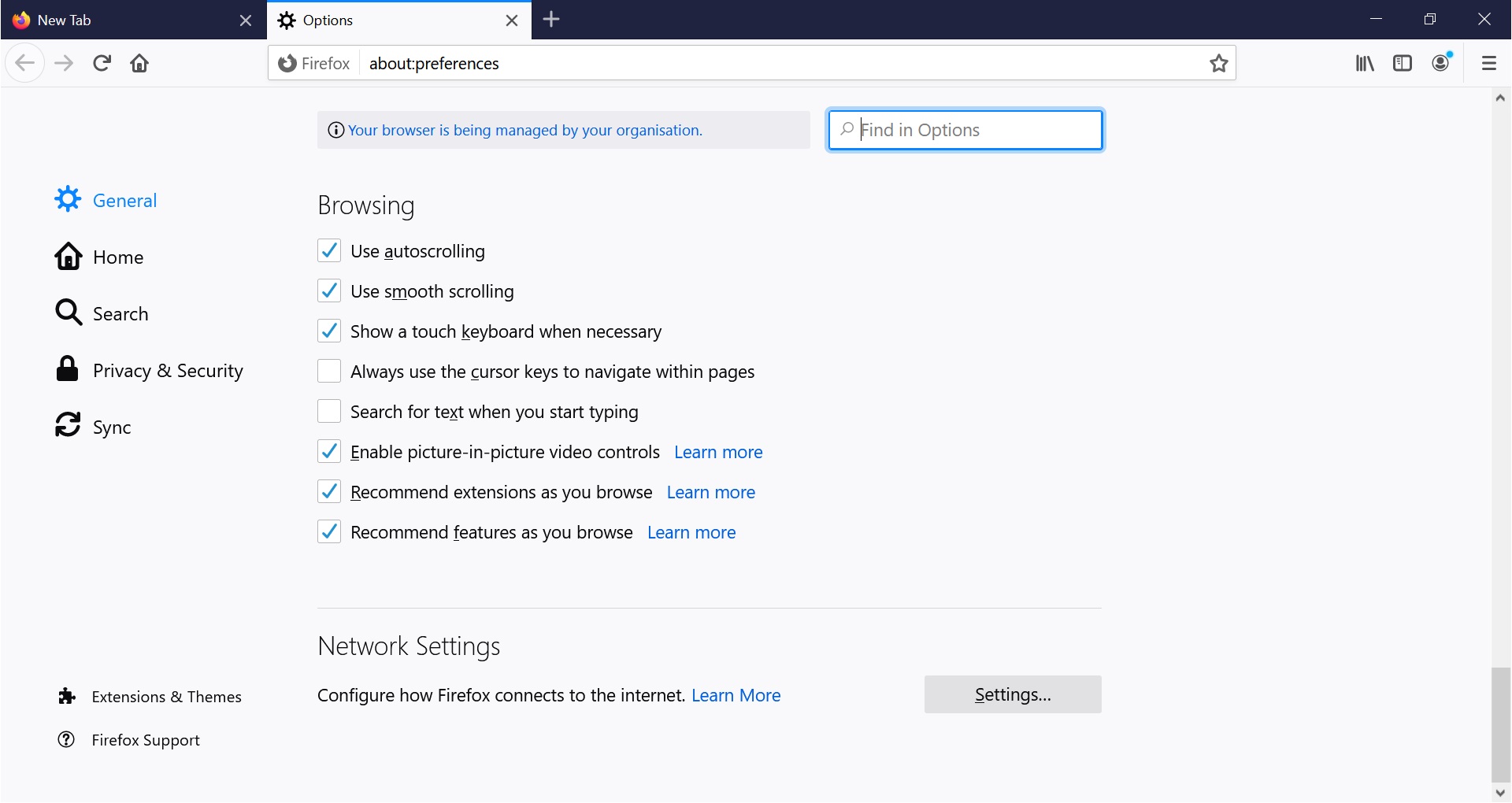
Scroll down to Network Settings and click Settings…
Choose Manual proxy configuration, change the port to 8877 and check Also use this proxy for FTP and HTTPS (you may also see «Use this proxy for all protocols»)

Make sure the No Proxy for field has nothing extra. If you see this field for the first time - just clear it.

If you plan to test on localhost - read the article «Proxy for localhost» if you will test on another machine or over the internet - keep reading this article.
Certificate
The browser needs a certificate. This section explains how to get and use it.
Back in JMeter, in the HTTP(S) Test Script Recorder
change
Target Controller
to
Test Plan > HTTP(S) Test Script Recorder
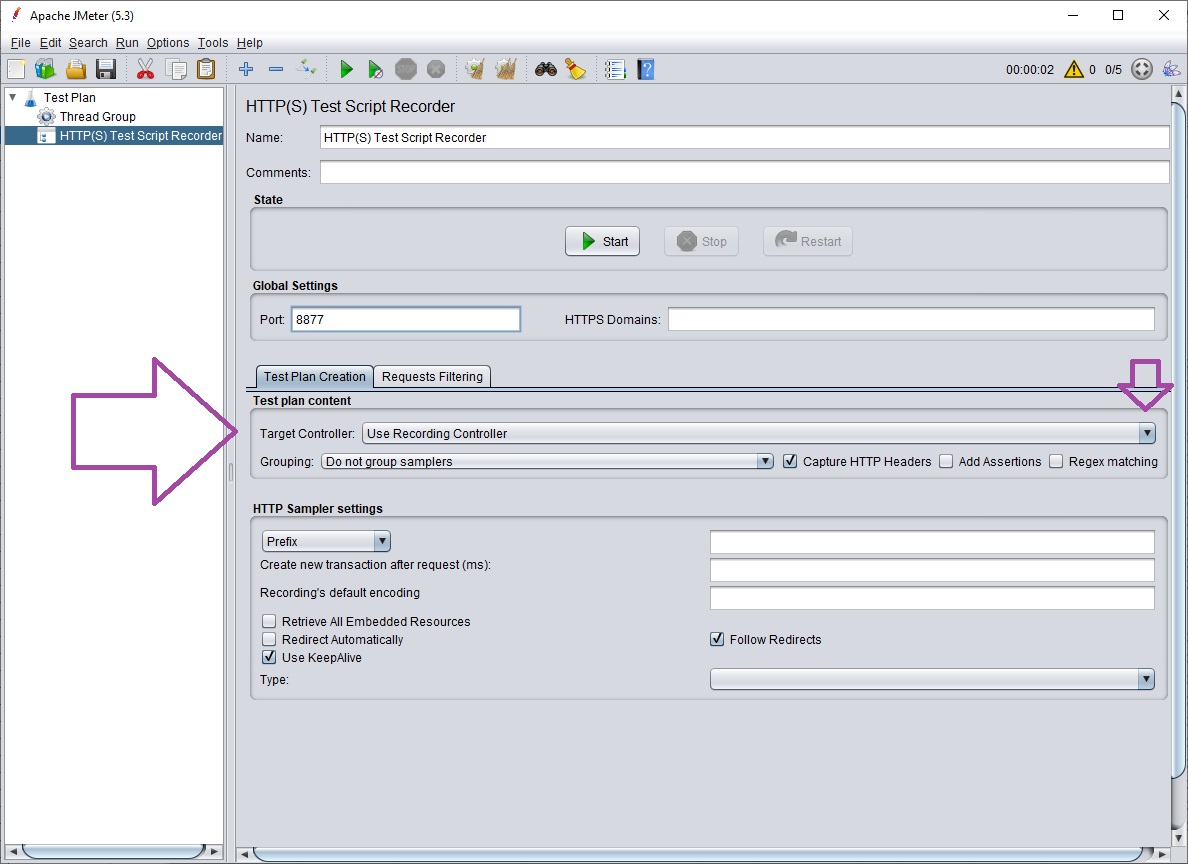
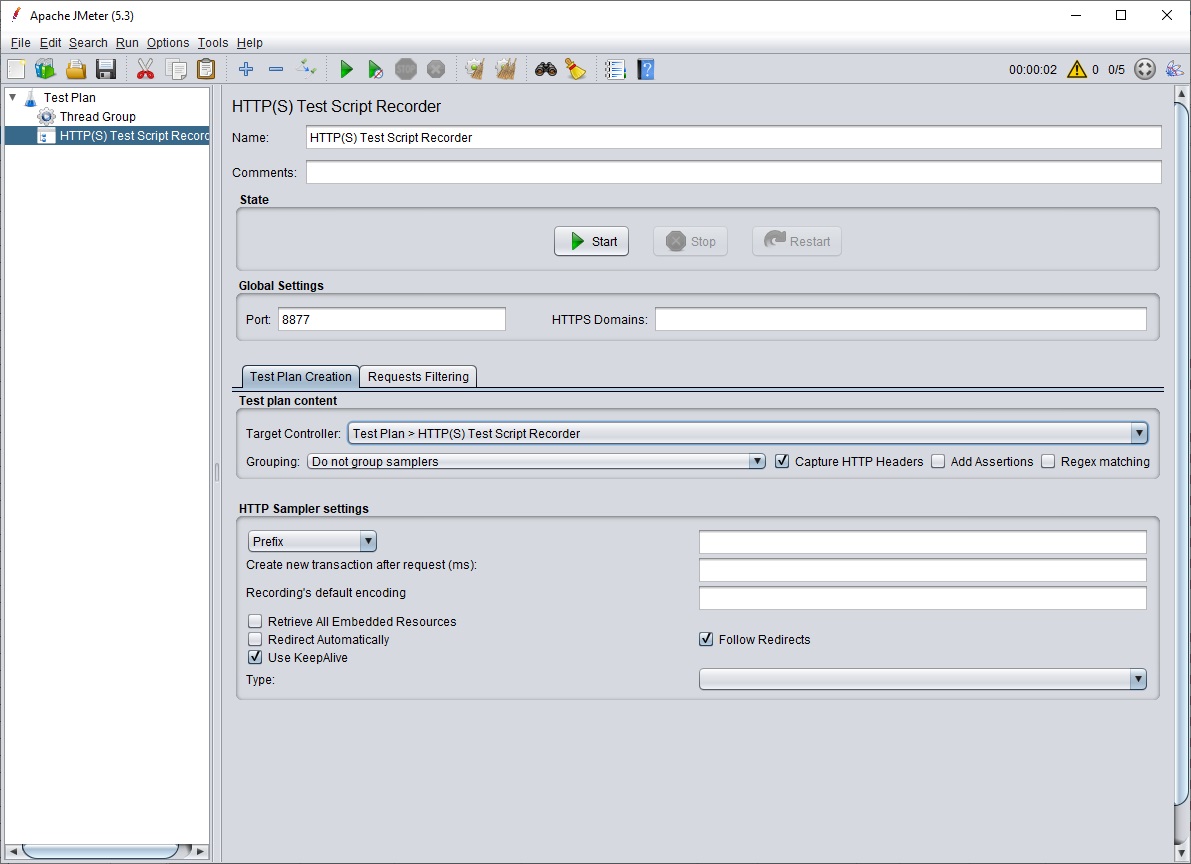
Now the plan is finally ready to record. Note the contents of the apache-jmeter-X.X\bin folder

No certificates there yet.
Go back to JMeter and click Start

A certificate creation message appears. Click OK
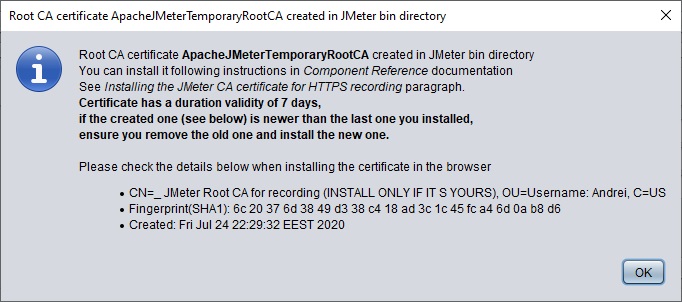
A new window appears
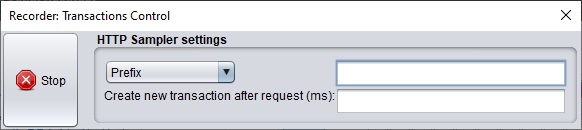
Note the contents of the apache-jmeter-X.X\bin folder

The certificates are there.
Go back to the Firefox settings. Search for certificates. Click View Certificates
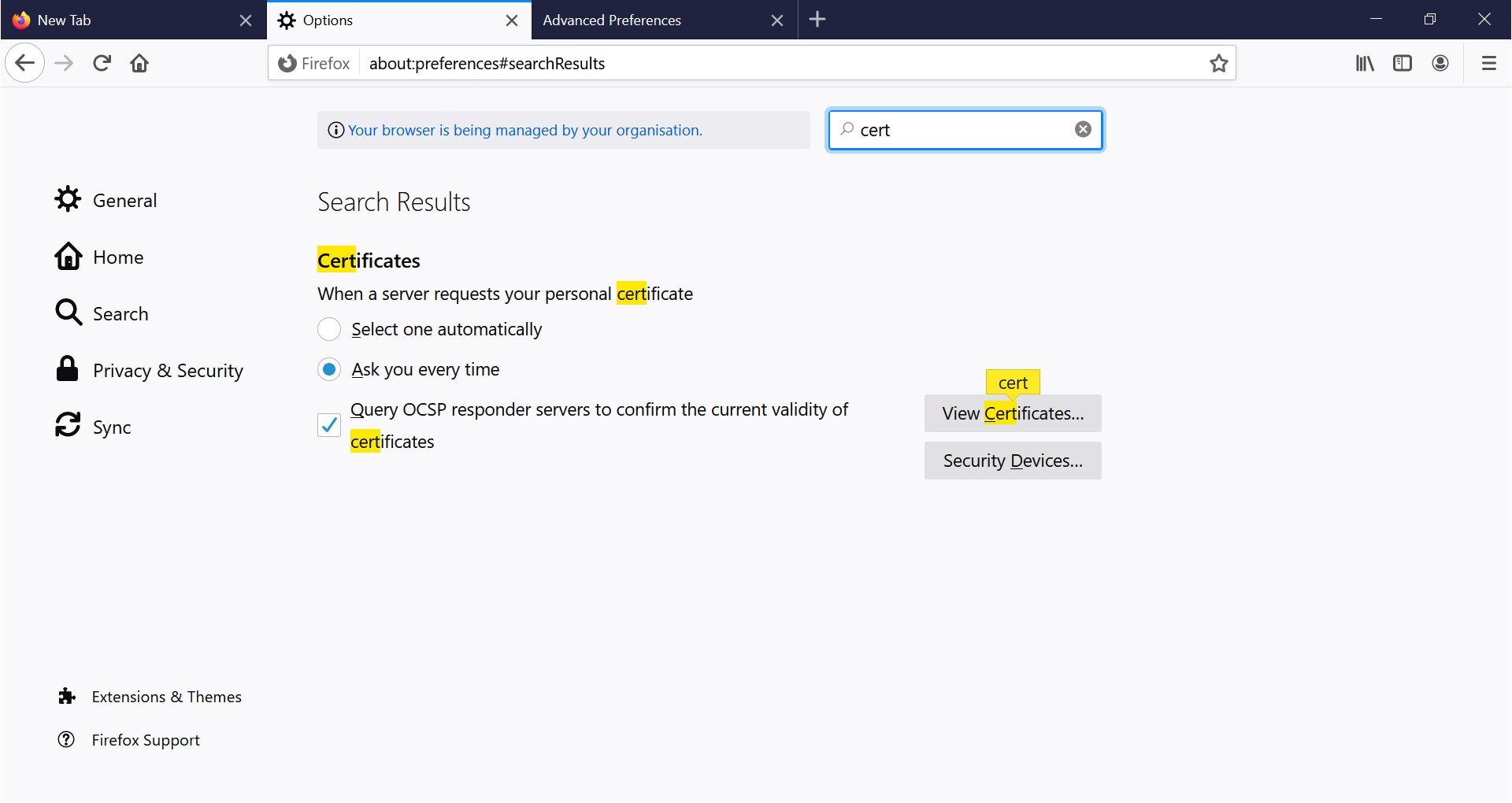
Click Import
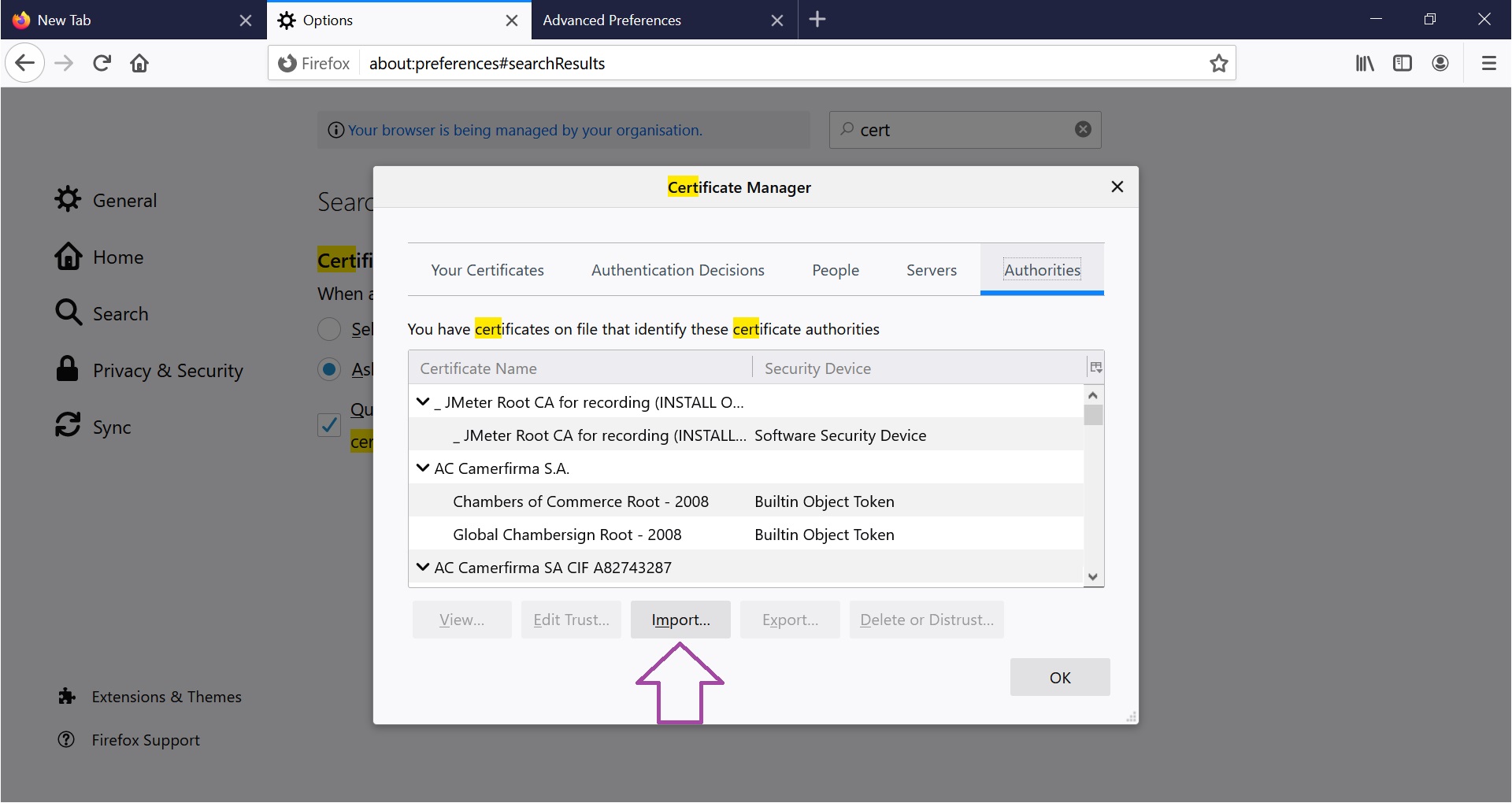
Select the certificate
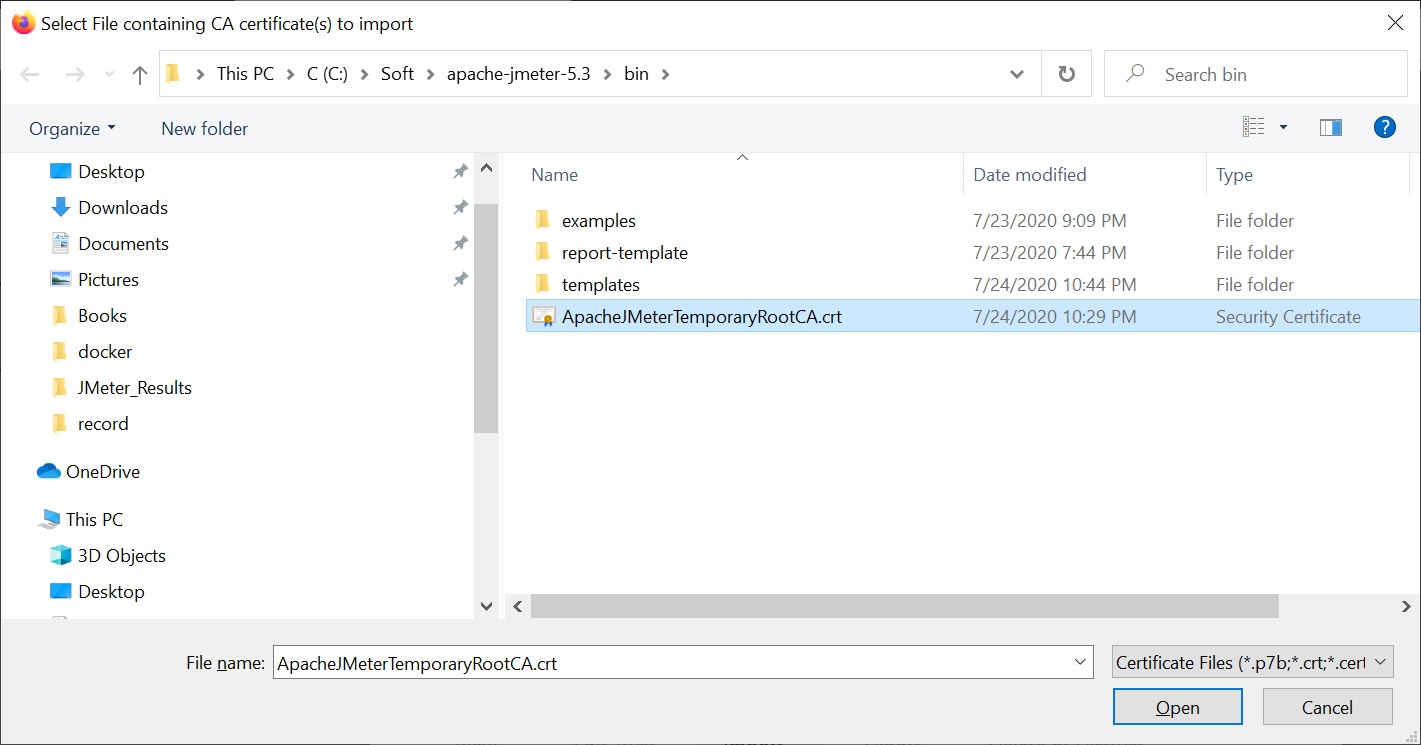
Close the browser and stop the recording by clicking Stop. Make sure this window is closed.
Recording
In JMeter click Start and OK in the certificate window.
Open Firefox
Go to any website, for example https://www.heihei.ru/fly/

Enter a destination city, for example Malaga and click «Find tickets». Note how long the search takes.


In JMeter click Stop and then the triangle next to HTTP(S) Test Script Recorder
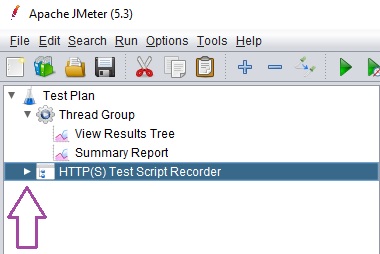
A tree of all recorded actions expands

The test is recorded. Read how to process it in the next article «Processing a recorded test»
Article author: Andrei Olegovich