Selenium with Java
Introduction
This guide introduces the core features of Selenium with Java.
Some code examples are wrapped to fit the page. If a line is long, scroll horizontally to see the rest.
Add Selenium to an IntelliJ IDEA project
Go to
www.selenium.dev/downloads/
Find
Java
in the list of available languages and click
Download

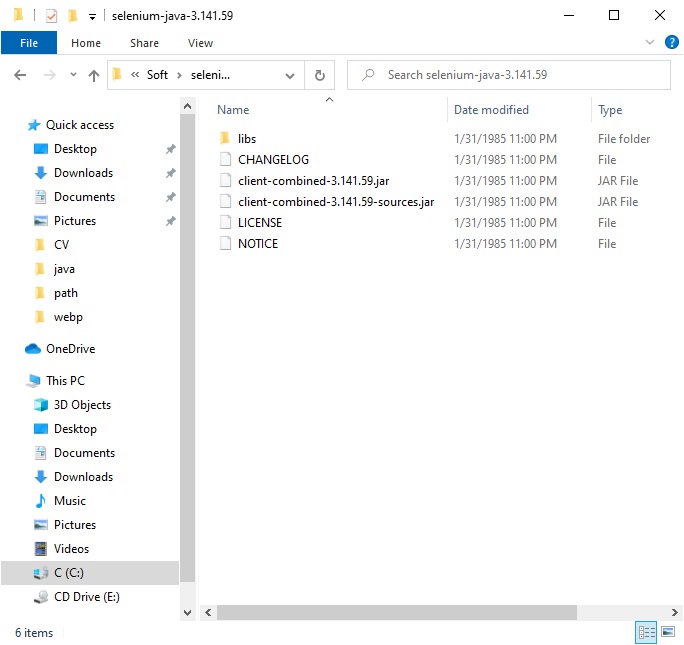
Extract the archive. Its contents should look similar to this.
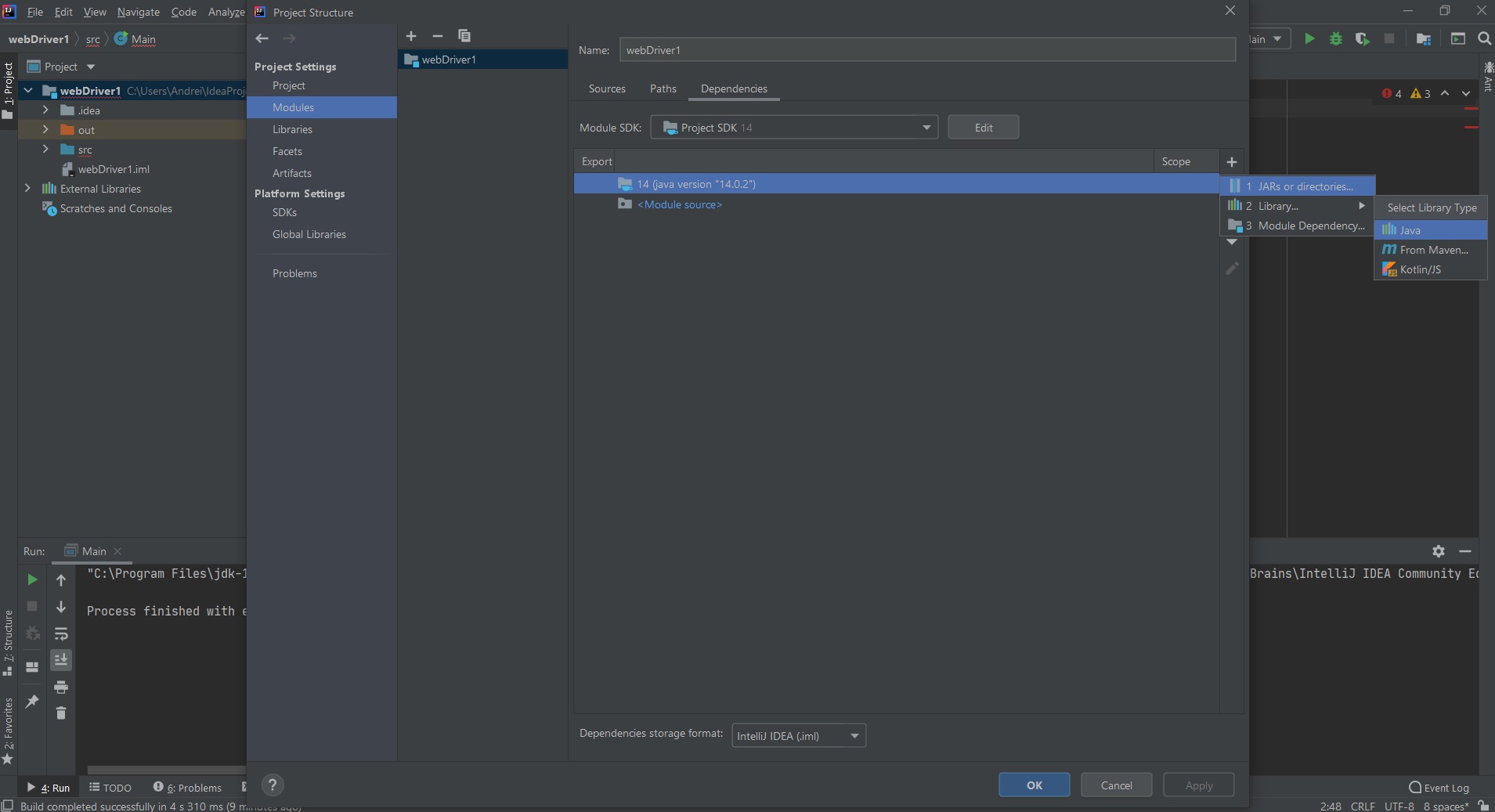
Open your project in IntelliJ IDEA and select File → Project Structure.
Select Modules, click the plus sign on the right, and choose 1. JARs or directories….
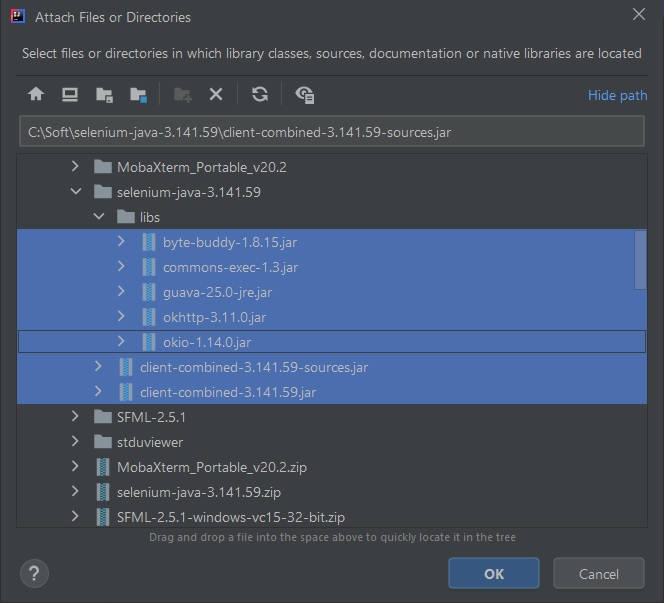
Open the folder where you extracted Selenium and select all .jar files in the root and in the libs subfolder.
Click OK.
Continue to the next section.
Set up a browser driver
Browser-driver setup is broadly the same whichever programming language you use.
See the guide
«Set up a Selenium browser driver»
A simple test
To verify that Selenium is set up, paste the following code into your project and compile it.
Remember to add the driver directory to the system
PATH
See the Selenium basics guide for instructions.
Selenium basics
import org.openqa.selenium.WebDriver;
import org.openqa.selenium.firefox.FirefoxDriver;
public class Main {
public static void main(String[] args) {
WebDriver driver = new FirefoxDriver();
}
}
If you cannot edit PATH, set the driver location explicitly before creating the WebDriver:
System.setProperty("webdriver.gecko.driver", "C:/webdrivers/geckodriver.exe");
Find elements
For an overview of locator strategies, see
«Selenium basics»
First import By, which provides Java's locator strategies:
import org.openqa.selenium.By;
Finding an element is often only the first step. Import WebElement to interact with the element you found.
import org.openqa.selenium.WebElement;
Element locator examples
This short example demonstrates several ways to locate elements.
Open the
Selenium practice form
The test will:
1. Fill in the “Website” field and click “Visit”.
2. Click the first link whose text is “Renovation”.
3. Click the second element whose text is “Italy”.
4. Click the second image.
Each task uses a different locator strategy.
Start with an ID locator. The practice page contains this input:
<input type="text" id="name1" name="url1">
So the ID to locate is name1.
import org.openqa.selenium.By;
import org.openqa.selenium.Keys;
import org.openqa.selenium.WebDriver;
import org.openqa.selenium.WebElement;
import org.openqa.selenium.chrome.ChromeDriver;
public class webDriverDemo1 {
public class main(String[] args) {
WebDriver driver =
new ChromeDriver();
// 1. Locate by ID
driver.get("https://aredel.com/qa/selenium/basic_test/");
WebElement searchField =
driver.findElement(By.id("name1"));
searchField.sendKeys("topbicycle.ru");
searchField.submit();
Use linkText to find links labelled Renovation, select the first match, and click it.
import org.openqa.selenium.By;
import org.openqa.selenium.Keys;
import org.openqa.selenium.WebDriver;
import org.openqa.selenium.WebElement;
import org.openqa.selenium.chrome.ChromeDriver;
public class webDriverDemo1 {
public class main(String[] args) {
WebDriver driver = new ChromeDriver();
// 2. Locate by link text
driver.get("https://aredel.com/qa/selenium/basic_test/");
WebElement renovationLink =
driver.findElements(By.linkText("Renovation")).get(0);
renovationLink.click();
Next, use a CSS selector to find an a element with the march8 class.
import org.openqa.selenium.By;
import org.openqa.selenium.Keys;
import org.openqa.selenium.WebDriver;
import org.openqa.selenium.WebElement;
import org.openqa.selenium.chrome.ChromeDriver;
public class webDriverDemo1 {
public class main(String[] args) {
WebDriver driver = new ChromeDriver();
// 3. Locate by CSS selector
driver.get("https://aredel.com/qa/selenium/basic_test/");
WebElement march8Link =
driver.findElements(By.cssSelector("a[class=march8]")).get(0);
march8Link.click();
Finally, locate an image by its tag name.
import org.openqa.selenium.By;
import org.openqa.selenium.Keys;
import org.openqa.selenium.WebDriver;
import org.openqa.selenium.WebElement;
import org.openqa.selenium.chrome.ChromeDriver;
public class webDriverDemo1 {
public class main(String[] args) {
WebDriver driver = new ChromeDriver();
// 4. Locate by tag name
driver.get("https://aredel.com/qa/selenium/basic_test/");
WebElement imageLink =
driver.findElements(By.tagName("img")).get(1);
imageLink.click();
}
}
Radio buttons
On the
Selenium practice form
find a radio button and select Lannister.
Print the selected value to verify the result.
This example stores the radio buttons in a list, so it imports
import java.util.List;
The example uses
Firefox
import org.openqa.selenium.By;
import org.openqa.selenium.WebDriver;
import org.openqa.selenium.WebElement;
import org.openqa.selenium.firefox.FirefoxDriver;
import java.util.List;
public class WebDriverRadioButtons {
public static void main(String[] args) {
WebDriver driver = new FirefoxDriver();
driver.get("https://aredel.com/qa/selenium/basic_test/");
List<WebElement> radioButtons =
driver.findElements(By.name("house"));
radioButtons.get(1).click();
for (WebElement radioButton : radioButtons) {
if (radioButton.isSelected()) {
System.out.println(radioButton.getAttribute("value"));
}
}
}
}
Checkboxes
On the
Selenium practice form
find the checkboxes and select Cersei.
The input has an ID in the page source, so it can be located directly.
import org.openqa.selenium.By;
import org.openqa.selenium.WebDriver;
import org.openqa.selenium.WebElement;
import org.openqa.selenium.firefox.FirefoxDriver;
public class WebDriverCheckboxes {
public static void main(String[] args) {
WebDriver driver = new FirefoxDriver();
driver.get("https://aredel.com/qa/selenium/basic_test/");
WebElement checkbox =
driver.findElement(By.id("cerseiId"));
checkbox.click();
}
}
Drop-down lists
On the
Selenium practice form
find the drop-down list and select Dawn.
This example uses Select, so import
import org.openqa.selenium.support.ui.Select;
import org.openqa.selenium.By;
import org.openqa.selenium.WebDriver;
import org.openqa.selenium.WebElement;
import org.openqa.selenium.firefox.FirefoxDriver;
import org.openqa.selenium.support.ui.Select;
public class WebDriverSelectItems {
public static void main(String[] args) {
WebDriver driver = new FirefoxDriver();
driver.get("https://aredel.com/qa/selenium/basic_test/");
WebElement selectElement =
driver.findElement(By.id("swords"));
Select select = new Select(selectElement);
select.selectByVisibleText("Dawn");
}
}
Tables
On the
Selenium practice form
locate a table. The outer table contains a nested table; find a cell in the nested table's third row and print its text.
Notice lines 14–16: the driver first locates the outer table, then each search is scoped to the table found in the previous step.
import org.openqa.selenium.By;
import org.openqa.selenium.WebDriver;
import org.openqa.selenium.WebElement;
import org.openqa.selenium.firefox.FirefoxDriver;
public class WebDriverTables {
public static void main(String[] args) {
WebDriver driver = new FirefoxDriver();
driver.get("https://aredel.com/qa/selenium/basic_test/");
WebElement outerTable =
driver.findElement(By.tagName("table"));
WebElement innerTable =
outerTable.findElement(By.tagName("table"));
WebElement row =
innerTable.findElements(By.tagName("td")).get(2);
System.out.println(row.getText());
}
}
Wait for an element
Elements can load at different speeds. Use Selenium's wait conditions instead of relying on arbitrary delays.
This example opens the site's search page, waits for the search field, enters python, then waits for and clicks the search button.
import java.time.Duration;
import org.openqa.selenium.By;
import org.openqa.selenium.WebDriver;
import org.openqa.selenium.WebElement;
import org.openqa.selenium.firefox.FirefoxDriver;
import org.openqa.selenium.support.ui.WebDriverWait;
import static org.openqa.selenium.support.ui.ExpectedConditions.presenceOfElementLocated;
public class WebDriverExplicitWait {
public static void main(String[] args) {
WebDriver driver = new FirefoxDriver();
// explicit wait
WebDriverWait wait = new WebDriverWait(driver, Duration.ofSeconds(50));
driver.get("http://www.eth1.ru/search.php");
try {
WebElement yandexField =
wait.until(presenceOfElementLocated(By.name("text")));
yandexField.sendKeys("python");
}
catch (Exception e) {
e.printStackTrace();
}
try {
WebElement yButton =
wait.until(presenceOfElementLocated(By.className("ya-site-form__submit")));
yButton.click();
}
catch (Exception e) {
e.printStackTrace();
}
}
}
Implicit wait
An implicit wait is a global WebDriver setting. When locating an element, WebDriver keeps checking until it finds the element or the timeout expires.
The driver polls the page DOM while waiting for the element.
Explicit wait
An explicit wait pauses only until a particular condition is met, such as an element becoming visible or clickable. It is usually a better fit when different page elements load at different times.
| Selenium | |
| Basics: WebDriver, selectors and errors | |
| Basic test form | |
| Spider test form | |
| Selenium with Python | |
| Selenium with Java | |
| Software Testing |
